For the complete documentation index, see llms.txt. Markdown versions of all docs pages are available by appending .md to any docs URL.
Stdio
Verified : Code examples on this page have been automatically tested and verified.Run a local MCP server as a subprocess and expose it through agentgateway over stdio.
An MCP backend allows exposing MCP servers through the agentgateway using STDIOSTDIO (Standard Input/Output)A connection method for MCP servers that communicates through standard input and output streams. STDIO is commonly used for local MCP server processes..
Before you begin
Install theagentgateway binary.Configure the agentgateway
You can add the MCP server in the UI or in a configuration file.
Create a configuration with an empty
mcpsection, and start agentgateway. You add the MCP server in the UI.cat <<'EOF' > config.yaml # yaml-language-server: $schema=https://agentgateway.dev/schema/config mcp: port: 3000 targets: [] EOF agentgateway -f config.yamlOpen http://localhost:15000/ui/mcp/servers (MCP > Servers), and click Add server.
Enter
everythingfor the Server name, and select the Command Line transport.Enter
npxfor the Command and@modelcontextprotocol/server-everythingfor the Arguments.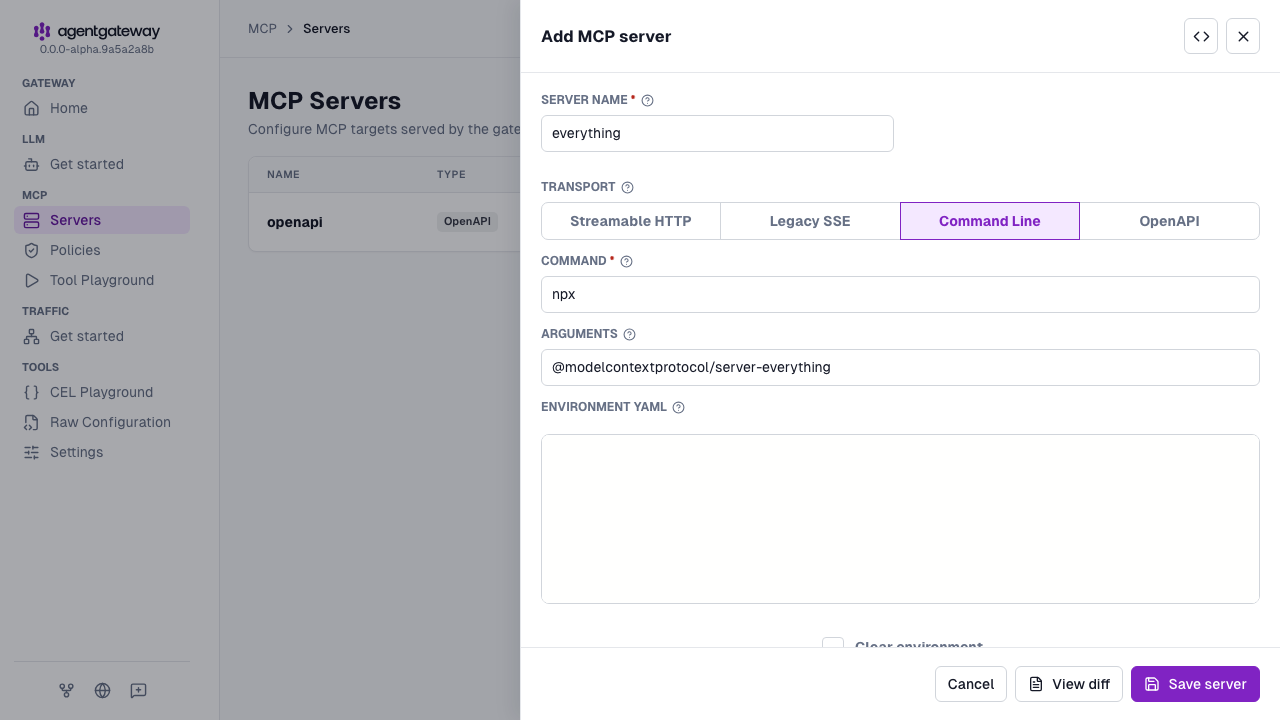
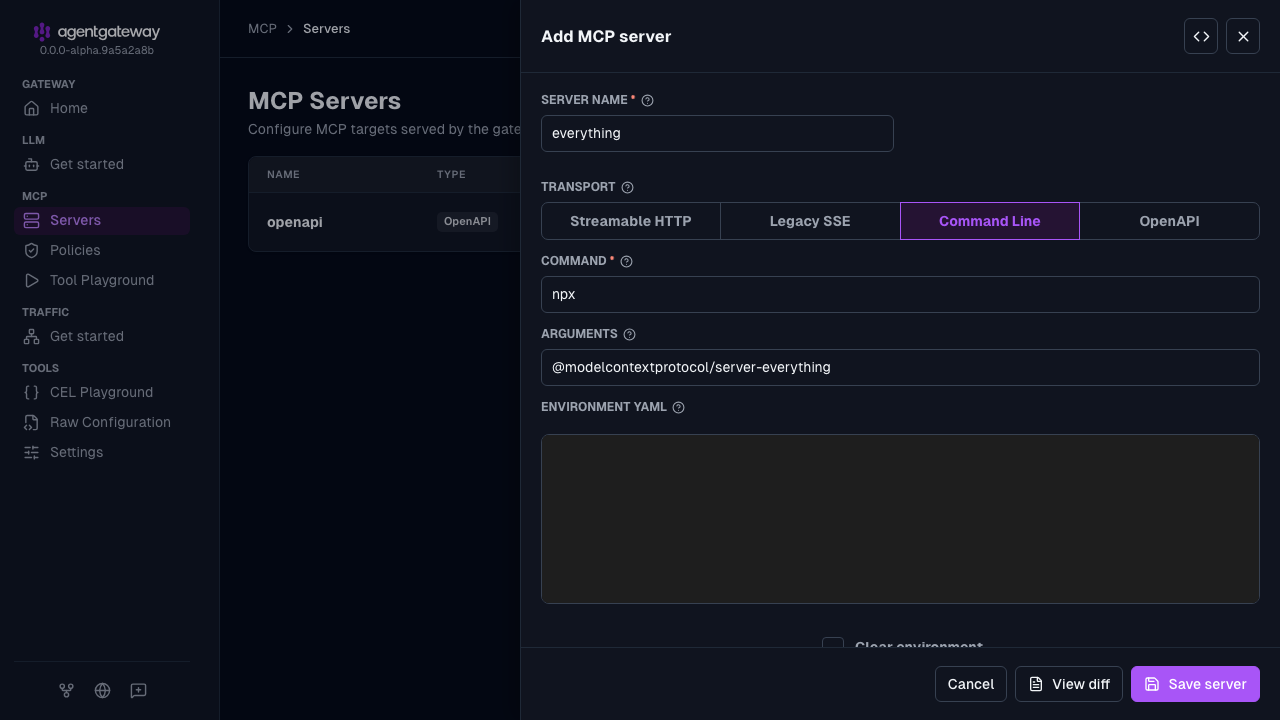
Click Save server.
The UI writes the same everything target as the example configuration, plus an empty env map and clear_env: false. The UI splits Arguments on spaces. For an argument that contains a space, use the Raw icon (<>) in the drawer header.
The example configuration also sets a CORS policy for the UI playground. In the UI, you add that policy with Apply CORS when you verify the setup in the next section.
Whether the UI can save depends on your storage mode. For more information, see Save changes from the UI.
Verify access to tools
Open the agentgateway UI to view your listener and backend configuration.
Connect to the MCP test server with the agentgateway UI playground.
From the navigation menu under MCP, click Tool Playground.
If you see a Browser access is not allowed notice, click Apply CORS so the playground can call the MCP listener from the UI.
Click Initialize to open an MCP session. The agentgateway UI connects to the target that you configured and lists the tools that are exposed on the target.
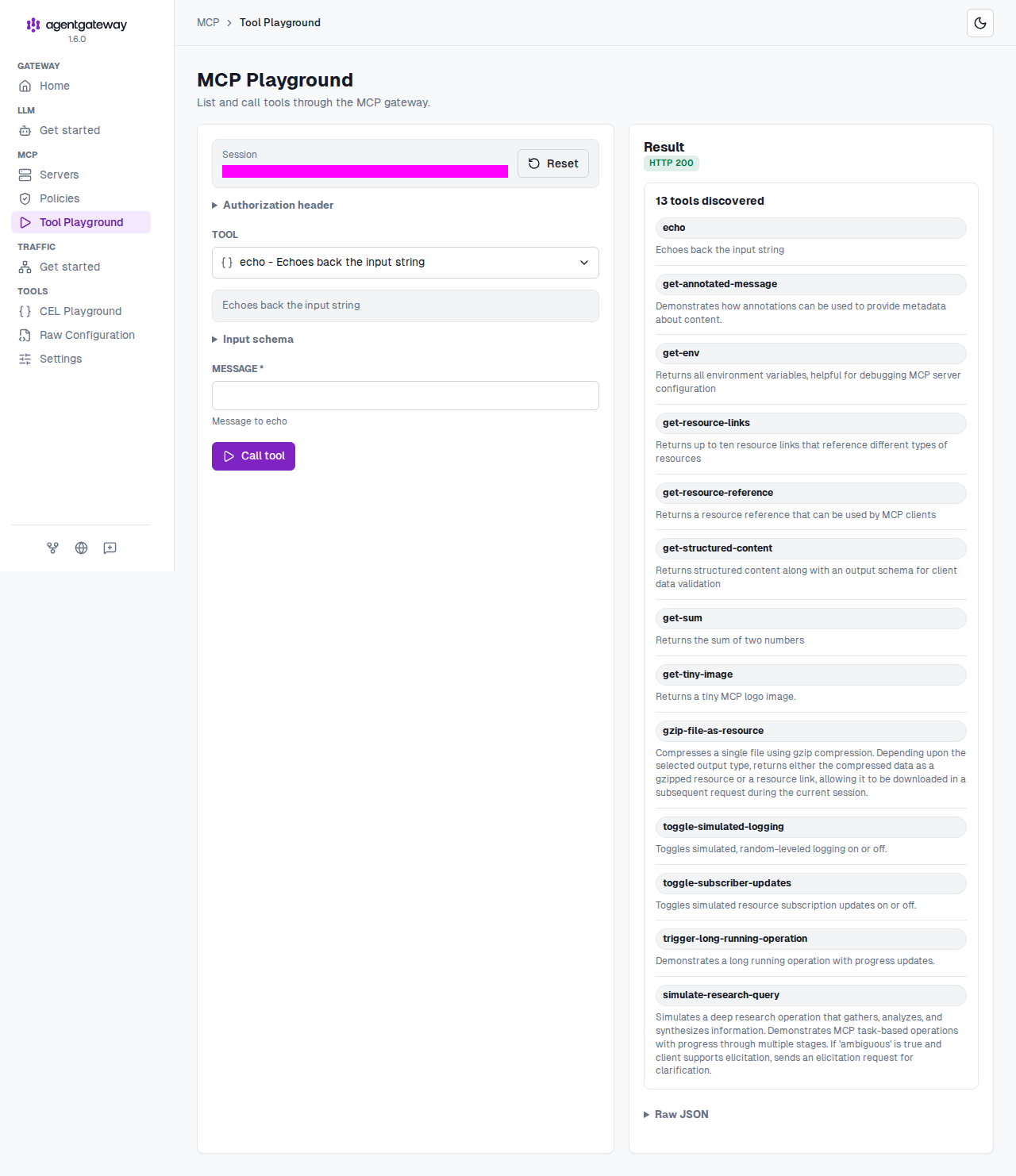
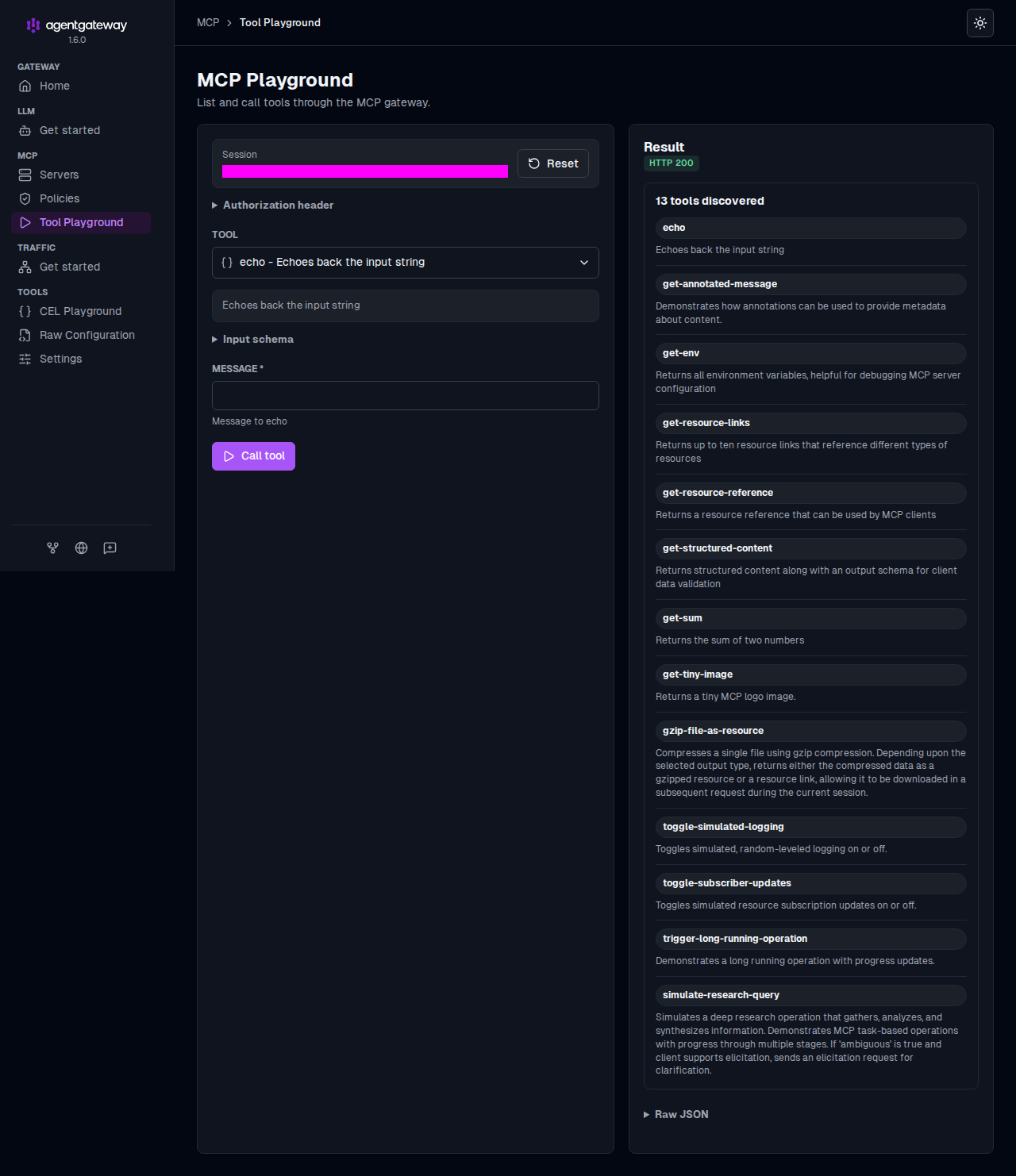
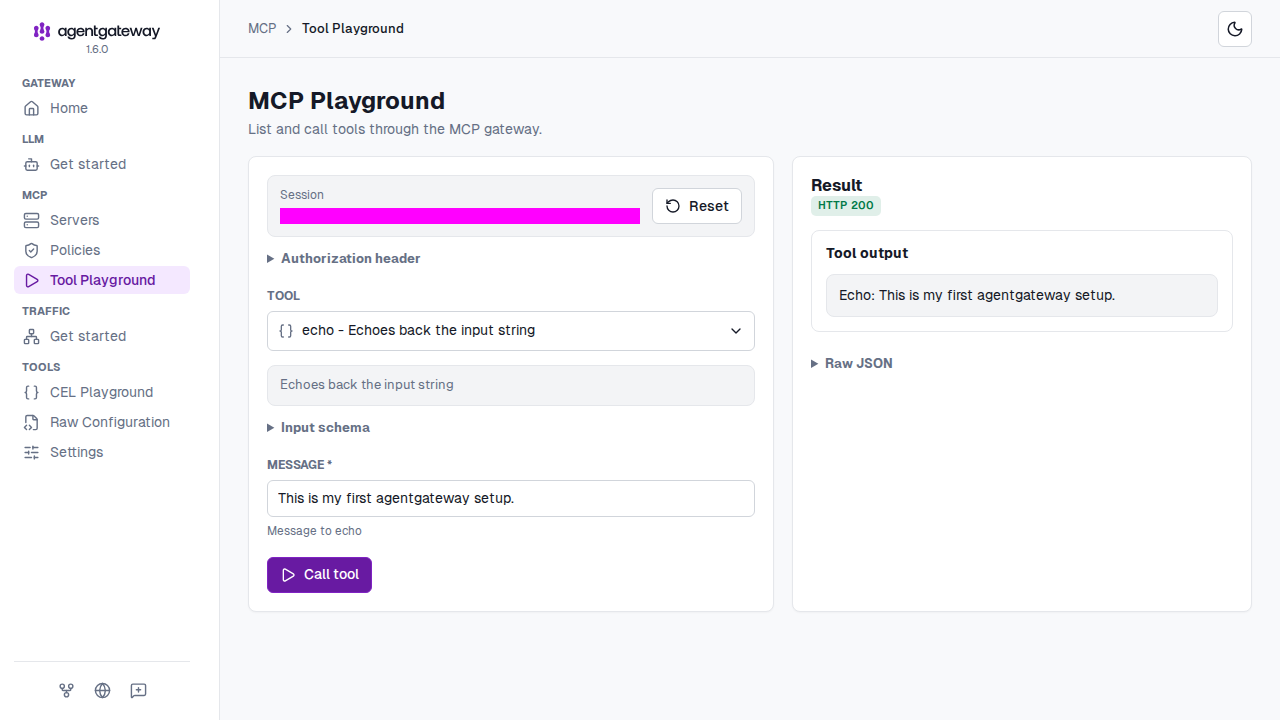
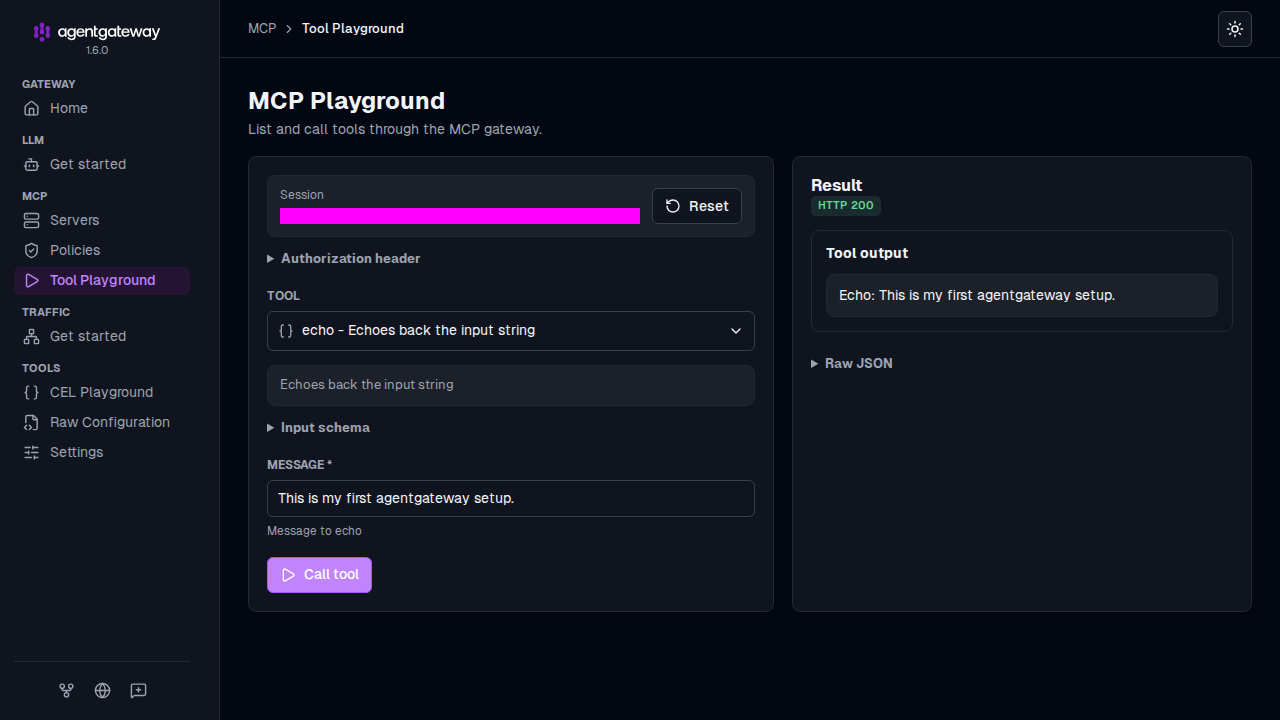
Verify access to a tool.
From the Tool list, select the
echotool.In the Message field, enter any string, such as
This is my first agentgateway setup., and click Call tool.Verify that the Result card shows an
HTTP 200response with your message echoed back.